02. Semantic HTML + CSS Target Practice
Introduction
Last week we talked about a very basic HTML page, and now we'll talk about different tags you can use within a page, and why you would use them. The overall take away we want to come away from this page with is the idea of separation of concerns this is an idea coined by Edsger W. Dijkstra specifically for computer science, but it applies here in that:
-
HTML is for content
-
CSS is for styling
There are of course places where that
What tags have you seen before?
Presumably you have some familiarity with the following common HTML tags:
<!-- a paragraph -->
<p></p>

<!-- headings -->
<h1></h1>
<h2></h2>
<h3></h3>

<!-- an anchor tag usually for links -->
<a href = "link.html"></a>

<!-- an unordered list -->
<h2> a very green-stuff-forward grocery list </h2>
<ul>
    <li>brocolli</li>
    <li>cabbage</li>
    <li>kale</li>
</ul>

<!-- a div or "division" within a page -->
<div id = "unique-id" class = "repeated-class"> </div>
These were used frequently, and at different times, different things became popular due to what was possible on the web. There was a time when many sites used tables to organize pages, and with spacing gifs. And before HTML5 it was very popular to use divs with ids and classes. As we talked about with the basic html page, these are not necessarily "wrong" but they are not semantic that is to say, they don't have explicit standardized meaning, especially to browsers and assistive technology (screen readers).
If you're unsure about any of the tags above here are the specific pages about them on w3 schools
What are some semantic tags you should know?
Note that the structure of this page is an example of how you would organize the page semantically, or related to the meaning of what is in the page. Again, the purpose of this is so that the browser and other technologies like screen readers can better understand what the page is doing. Additionally, this is part of the HTML standard, so it is a practice that additionally helps web developers communicate.
<!doctype html>
<html lang = "eng">
    <head>
        <meta charset = "utf-8">
        <title> example HTML page with SEMANTIC tags </title>
    </head>
    <body>

        <nav>
            <!--
            The navigation for your site
            would go here
            -->
        </nav>

        <header>
            <!--
            Use this tag for an introductory
            content section

            this is different than the "<head>"
            tag itself.
            -->
        </header>

        <!--
        the main content area
        of a web page
        -->
        <main>
            <!-- and sections within it -->
            <section>

                <article>
                <!-- a text heavy section -->
                </article>

                <aside>
                <!-- a callout within the article -->
                </aside>
            </section>
        </main>

        <footer>
            <!-- the bottom area of a page -->
        </footer>
    </body>
</html>
So here is a list of the tags in the page above (linked to w3schools pages, if needed/helpful):
Why introduce this content?
The purpose of introducing this content is not necessarily to enforce it but to show that there is not one distinct solution for your project, and that your HTML can help describe the content you are showing. Many of these tags are intended for more "pragmatic" purposes, but nonetheless can help you streamline what you're doing, or at least provide some structure.
For the purpose of this class, I will not expect you to use them unless I tell you to do so
Additionally, you might ask an LLM, a friend in New Media or Computer Science, someone on Reddit or Discord, or see reference on another website. This will help prepare you for the HTML tags you might see, and help you to organize them within your project.

Mike Tyson throwing darts blindfolded, from Giphy
CSS Target practice Introduction
So now, we'll take our HTML and add CSS to it. CSS is Cascading Style Sheets. By default, an HTML page has a very specific set of styles. What CSS allows us to do is "target" specific parts of the page and apply styles to them. This can affect many things on the page, but for now we'll just change the text and background color of our elements, to understand that we are affecting them.
Targeting a Tags
When we write CSS, we have to give it a selector and then properties and values that we want to change. Presumably, you have seen this syntax structure before. The below CSS would make the color of the text on a p tag white, and the background magenta (#FF00FF).
-
p → selector
-
background-color → property
-
#FF00FF → value
/* p is the selector */
p
{
    /*

    "color" and
    "background color"
    are the properties
    hex values
    are the values

    */

    color           : #FFFFFF;
    background-color: #FF00FF;
}
Getting more Specific
Let's take the following HTML snippet:
<header>
    <p> some information! </p>
</header>

<!-- other page content inbetween -->

<footer>
    <p> other information! </p>
</footer>
Let's say, we want our header paragraphs to have a green background and white text, and our footer paragraphs to have a magenta background with white text. We would target them like this:
header p
{
    color           : #FFFFFF;
    background-color: #00FF00;
}

footer p
{
    color           : #FFFFFF;
    background-color: #FF00FF;
}
The above will style each of these paragraphs differently. The space is the important part:
-
(HTML) header tag → p tag inside header tag
-
(CSS) header → (space) → p
Making your HTML slightly more specific
Assuming you're in control of the HTML (which would be the case in your project, but perhaps, not always for homework). You can also give your html ids and classes you should use this to identify your HTML where possible. Here's a little html snippet, presume these are bios of people.
<section id = "Freddie">
    <!-- Freddies bio is in here -->
</section>

<section id = "Julianna">
    <!-- Julianna's bio is in here -->
</section>

<section id = "Sephiroth">
    <!-- Sephiroth's bio is in here -->
</section>

<section id = "Amazing_Jonathan">
    <!-- Amazing Jonathan's bio is in here -->
</section>
You could then style them individually in css like so:
#Freddie
{
    background-color: #FF0000;
}

/* you can also write it like this, with no space */
section#Julianna
{
    background-color: #00FF00;
}

#Sephiroth
{
    background-color: #0000FF;
}

#Amazing_Jonathan
{
    background-coor: #FF00FF;
}
Here the hash mark (#) is the important thing that is used to signal an id in html:
-
(HTML) tag with id = "name"
-
(CSS) #name
The other thing you might have seen is this:
<section id ="Ben" class = "human">
    <!-- bio here -->
</section>

<section id ="Krark" class = "goblin">
    <!-- bio here -->
</section>

<section id ="Fred" class = "human">
    <!-- bio here -->
</section>
Here the id is meant to be unique, and the class, is a more generic designation that will target multiple tags. I am extending the idea of the bio here, so you might want to represent a goblin's bio in a different way than a human. With CSS you access this with a period.
/* all humans have a brown bg */
.human
{
    background-color: #9C7644;
}

/* all goblins have a green bg */
.goblin
{
    background-color: #369C0E;
}

/* Only Ben has blue text */
#Ben
{
    color: #0000FF;
}

/* Only Krark has white text */
#Krark
{
    color: #FFFFFF;
}
Getting yet more specific with CSS
For homework, I want you to work on different kinds of css selectors you may not have encountered before. Given the below html:
<h2> a very green-stuff-forward grocery list </h2>
<ul>
    <li>brocolli</li>
    <li>cabbage</li>
    <li>kale</li>
    <li>lettuce</li>
</ul>
You could target only cabbage with the below CSS (this assumes you get the space between ul and li mean the li's that are inside a ul):
/* nth-child will get the
"nth"-child of the parent element */

/* only cabbage */
ul li:nth-child(2)
{
    background-color: #FF00FF;
    color           : #000000;
}
You can also do this for even or odd:
/* only cabbage & lettuce */
ul li:nth-child(even)
{
    background-color: #FF00FF;
    color           : #000000;
}
The other things you'd need to know is that + will target "adjacent" siblings of a given element. Given this HTML snippet:
<ul>
    <li>brocolli</li>
    <li>cabbage</li>
    <li>kale</li>
    <li>lettuce</li>
</ul>
<ul>
    <li>tomato</li>
    <li>cherry</li>
    <li>apple</li>
</ul>
This CSS would make only the elements in the "red" list red:
ul li
{
    background-color: #0000FF;
}
ul+ul li
{
    background-color: #FF0000;
}
Homework #1
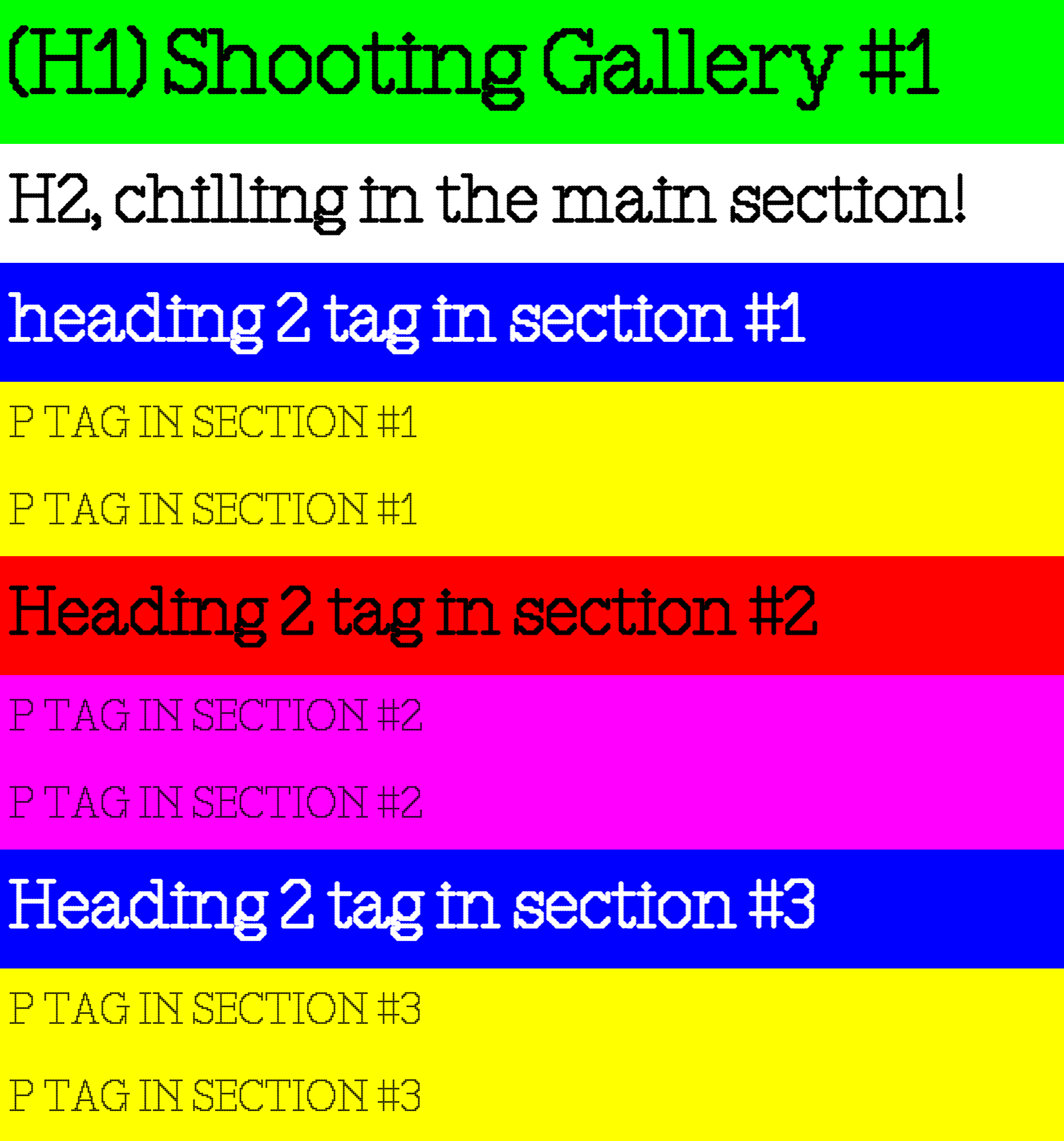
All you have to do is make the page look like the below image.
Homework #2
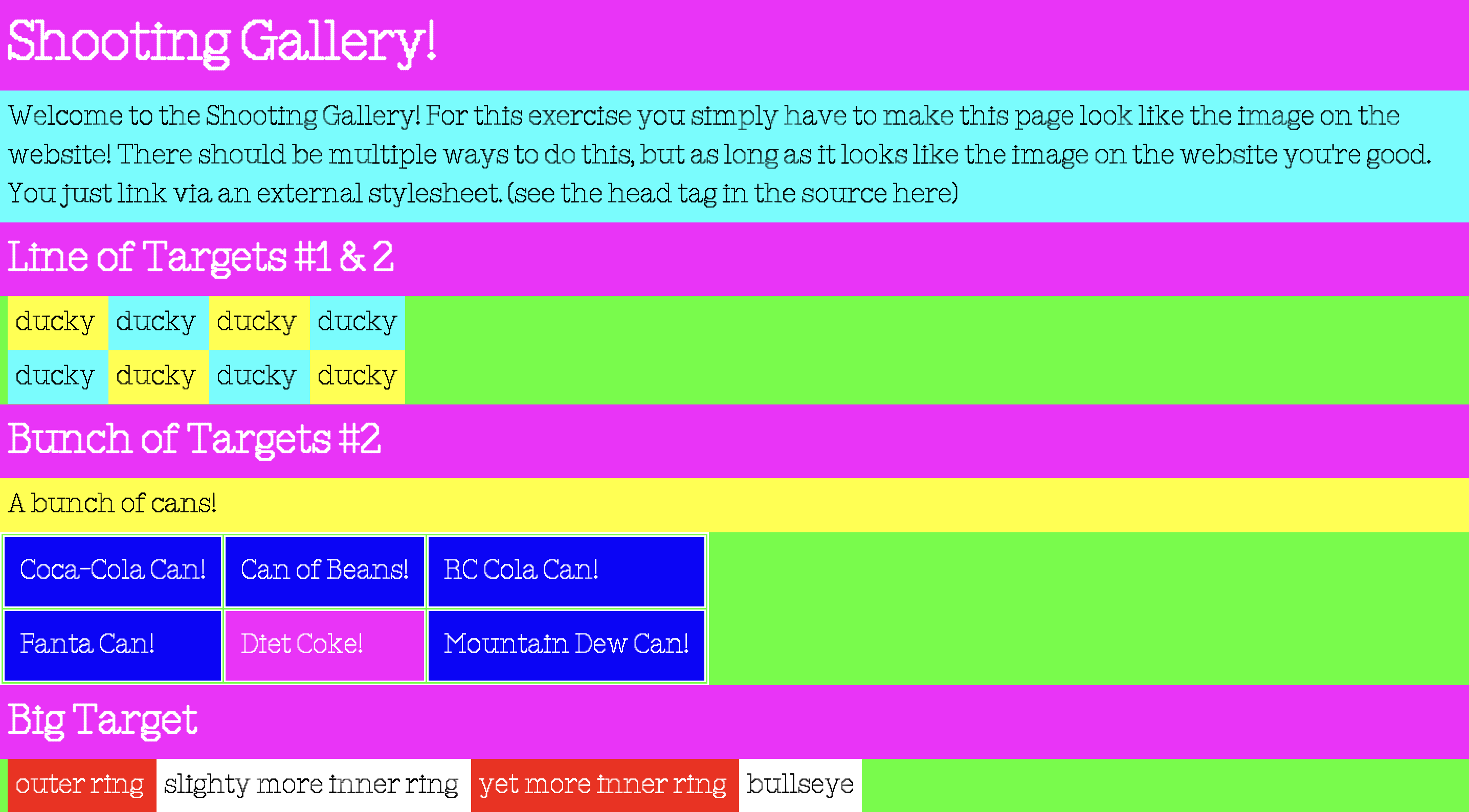
All you have to do is make the page look like the below image.
-
You cannot add or change the html or css on the index.html page
-
You only have to add selectors that target background-color and color and the colors are as follows:
- #FF00FF (magenta)
- #00FFFF (cyan)
- #FFFF00 (yellow)
- #FF0000 (red)
- #00FF00 (green)
- #0000FF (blue)
- #000000 (black)
- #FFFFFF (white)